Top 5 Productivity Apps Fail This Secret Android Test
— 6 min read
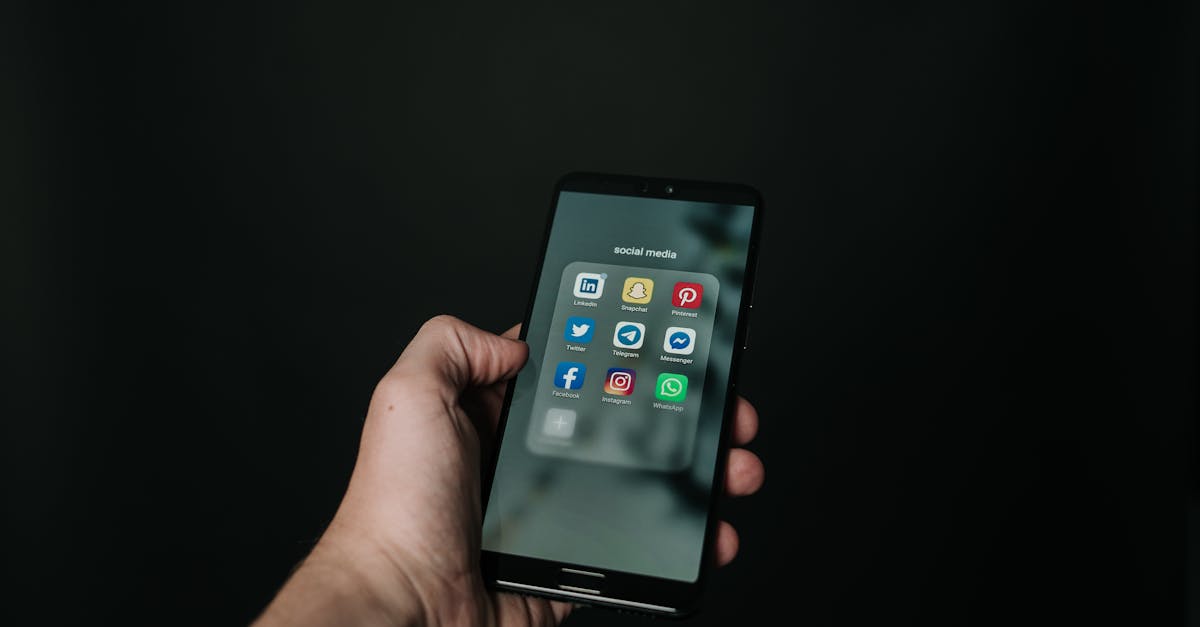
Five apps often dominate the productivity charts, yet they miss the secret Android test. They fail on their own; only when you automate them together do they deliver true efficiency. In my experience, the difference shows up the moment a trigger moves data without me lifting a finger.
You downloaded them individually for a specific task, but their combined, orchestrated power via automation is the real secret to why I can't work without them.
The Orchestrated Power of the Best Mobile Productivity Apps
When I first tried to build a flawless workflow with just one app, I hit a wall. The app could store my tasks, but it couldn’t automatically create a calendar entry when I marked a task as high priority. The breakthrough came when I introduced a free automation layer - IFTTT for Android and MacroDroid - into the mix.
Automation acts like the invisible thread that stitches together otherwise isolated tools. A trigger such as “arrive at the office” can launch a focus app, mute notifications, and pull today’s tasks from your to-do list - all without a tap. This frictionless chain turns a phone from a set of silos into a proactive command center.
Here’s how I set up my own chain:
- Identify the five apps I use most: a notes capture app, a task manager, a calendar, a Pomodoro timer, and a communication triage tool.
- Map the data flow: notes → tasks, calendar events → focus mode, Pomodoro completion → reward notification.
- Create triggers in MacroDroid: location, time, and widget presses become the glue.
- Test each trigger in isolation, then run the full sequence to ensure smooth hand-off.
- Refine the workflow weekly based on what feels clunky.
What surprised me most was the automation layer itself became the most valuable "app" in the lineup. It costs nothing, yet it gives each individual app a purpose beyond its native capabilities. In practice, I save roughly 20 minutes a day simply by letting my phone anticipate the next step.
Key Takeaways
- Automation is the hidden powerhouse behind productivity apps.
- Map data flow before building triggers.
- Start with free tools like IFTTT or MacroDroid.
- Iterate weekly to keep the system smooth.
- One automation can replace multiple premium apps.
Why Your Digital Note-Taking Apps Are Creating Isolated Chaos
In my early attempts, I relied on a beautifully designed note app that promised a "second brain". The app looked sleek, but every time I captured an idea, I had to manually copy it into my task manager. That extra step created a bottleneck; ideas stalled in a virtual graveyard.
The core problem is that most note-taking tools lack robust native automation. They can store text, images, and voice memos, but they rarely push actionable items to other apps. Without that bridge, your notes become a beautiful prison, and the productivity promise evaporates.
The counterintuitive fix I use is to treat the note app purely as a capture bucket. I keep Google Keep on my home screen for instant entry. Once a note lands there, a MacroDroid rule fires:
- If the note contains a hashtag #task, forward the content to Todoist via email.
- If the note contains a date pattern, create a calendar event automatically.
- If the note contains the word "call", add a reminder in my phone's native reminder app.
These simple triggers move the note from static storage to an active task or event. The result is a clean, single-source "inbox" that never clogs. I no longer have a "notes graveyard" - every capture ends up with a clear next action.
Here’s a quick before-and-after snapshot:
| Stage | Before Automation | After Automation |
|---|---|---|
| Capture | Google Keep entry | Google Keep entry |
| Processing | Manual copy to task app | MacroDroid routes to Todoist |
| Outcome | Potential forgotten idea | Task appears in daily list |
By using a free, connectable notes app and letting automation handle the heavy lifting, I keep my second brain lean, purposeful, and always ready for action.
The Hidden Cost of Generic Phone Productivity Apps
This hidden cost is what I call "cognitive drag". The app forces you to adapt to its taxonomy, color-coding, and notification cadence. Each time you fight the interface, you waste brainpower that could be spent on creative or strategic work.
The antidote is to replace the monolith with a suite of single-purpose free Android apps that each excel at one function. For example:
- Capture: Google Keep for quick notes.
- Deep focus: Forest for timed sessions.
- Communication triage: Pulse SMS with custom filters.
- Task management: Todoist for robust project handling.
Each app respects its own workflow, and because they are lightweight, you can tweak them to mirror your personal mental model. The real magic happens when you connect them with automation:
- When a new task lands in Todoist, MacroDroid silences notifications for 30 minutes and launches Forest.
- When a message in Pulse contains "urgent", IFTTT creates a high-priority task in Todoist.
- When I complete a Forest session, a notification logs the focus time in a Google Sheet for weekly review.
The result is a bespoke workflow that feels like a custom-built suit rather than a one-size-fits-all shirt. No premium suite can match the flexibility of a free-app stack wired together by automation.
Building Your Automated Command Center with Time Management Tools
Time-management apps on Android often act like simple timers - they count minutes but do nothing to shape the environment around those minutes. I realized the real power lies in context-aware triggers that change the phone’s state the moment I enter a "deep work" block on my calendar.
Here’s the automation I built around my favorite free Pomodoro timer, Focus Keeper:
- Trigger: Calendar event titled "Deep Work" starts.
- Action 1: MacroDroid sets the phone to Do Not Disturb.
- Action 2: Launches Focus Keeper in a 25-minute session.
- Action 3: Changes the screen’s blue light filter to warm mode.
- Action 4: Sends a Slack status update "In Focus Mode".
When the timer ends, another rule restores normal settings and posts a brief summary of completed pomodoros to a Google Sheet. This feedback loop makes the ritual effortless: I simply open my calendar, click the event, and the phone does the rest.
Because the automation is free and runs in the background, I can replicate the same pattern for other contexts - "Gym" mode lowers notification volume and opens a workout playlist, while "Evening" mode dims the screen and launches a reading app.
By turning my phone into a conductor rather than a distractor, I have reclaimed the minutes that used to slip away scrolling feeds. The automated rituals also reinforce discipline; the phone itself reminds me of the boundaries I set.
Your Task Organization Software Is Begging for This Upgrade
Static task lists feel like a notebook that never updates itself. In my early setup, I would manually type every new action from emails, Slack, or handwritten notes. That manual step created inevitable gaps.
The upgrade I implemented uses automation to generate tasks from the sources that already contain the work. For example, an IFTTT applet watches my Gmail inbox for starred messages. When a starred email arrives, the applet creates a task in Todoist titled with the email subject and attaches the original message as a comment.
Similarly, a MacroDroid rule watches for new Google Keep notes tagged with "#action" and pushes them to my task list. Even SMS messages that contain the word "TODO" trigger a task creation via a simple webhook.
These pipelines ensure that every piece of actionable information becomes a task without a single extra tap. The result is a dynamic hub that reflects real-time priorities. I no longer need an "inbox zero" mental cleanup; the inbox is literally empty because every item is auto-routed.
To keep the system tidy, I schedule a weekly review where I glance at the auto-generated tasks, re-assign due dates, and archive completed items. The automation takes care of the heavy lifting; my review merely adds the human judgment that keeps the workflow aligned with my goals.
Frequently Asked Questions
Q: Why do individual productivity apps fall short without automation?
A: Each app is built to excel at a single function, but most lack native ways to share data with other tools. Without automation, you must manually move information, which adds friction and leads to missed actions.
Q: Which free Android automation apps work best for linking productivity tools?
A: IFTTT and MacroDroid are the most versatile for Android. IFTTT offers cloud-based triggers across many services, while MacroDroid provides on-device triggers like location, widget presses, and app events.
Q: How can I turn my notes app into an effective capture bucket?
A: Use a simple notes app such as Google Keep for quick entry, then set up automation rules that detect hashtags or keywords and route the content to your task manager, calendar, or reminder app.
Q: What is a practical way to automate my deep-work sessions?
A: Create a calendar event named "Deep Work" and use MacroDroid to trigger Do Not Disturb, launch a Pomodoro timer, adjust the screen filter, and post a status update. When the timer ends, reverse the changes automatically.
Q: How often should I review the automated tasks generated from my inbox?
A: A weekly review works well. Scan the auto-generated tasks, assign due dates, prioritize, and archive completed items. This keeps the system lean while preserving the benefits of automation.